The fastest way: plug in and use your computer's built-in tools
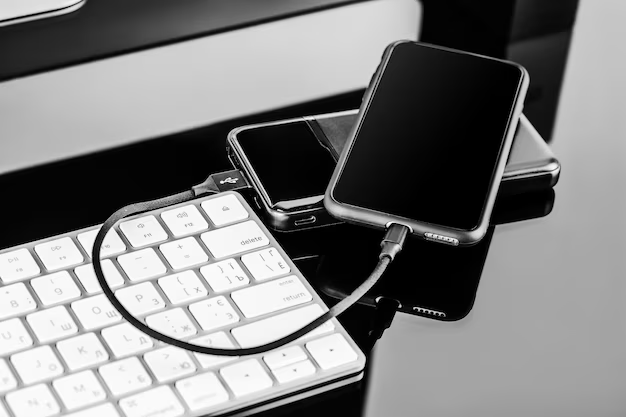
Connect your iPhone to your computer with a USB cable, then use the photo import tool that's already on your machine — you don't need to buy software or sign up for anything. On Windows, the Photos app opens automatically when you plug in an iPhone; on Mac, the Image Capture app does the same. Both let you select which photos to move and where to store them on your hard drive.
The process takes a few minutes. Your computer reads the photos directly from your iPhone's storage, copies them to the hard drive location you choose, and leaves the originals on your phone untouched. This is the method most people use because it's free, straightforward, and doesn't require you to understand cloud services or subscription accounts.
Key Takeaways
- Windows and Mac both have built-in photo import tools that set up when you plug in an iPhone — no additional software needed.
- You can select individual photos or import everything at once, and choose exactly where on your hard drive they land.
- A USB cable connection transfers photos faster than wireless methods and doesn't depend on your Wi-Fi network.
- If your iPhone storage is nearly full, transferring photos to a hard drive frees up space without deleting them from your computer.
Windows: using the Photos app to import
Plug your iPhone into a Windows computer with a USB cable. Your iPhone will ask you to trust this computer — tap "Trust" on the phone screen. The Photos app should open automatically; if it doesn't, search for "Photos" in the Windows Start menu and open it.
Click the three-dot menu in the top right corner of the Photos app, then select "Settings." Go to "Import settings" and choose the folder where you want photos to land — the default is your Pictures folder, but you can pick any location on your hard drive. Return to the main Photos window, click "Import," and select "From a USB device." Check the box next to "Select all new items" or click individual photos you want to move, then click "Import selected."
The app will copy your photos to the hard drive location you chose. This usually takes a few minutes depending on how many photos you're moving. Once the import finishes, you can unplug your iPhone. Your photos now exist in two places — on your iPhone and on your hard drive.
Mac: using Image Capture for direct control
Connect your iPhone with a USB cable. Image Capture opens automatically on most Macs; if it doesn't, open Finder, go to Applications, then Utilities, and double-click Image Capture. Your iPhone appears in the left sidebar under "Devices."
Click your iPhone in the sidebar. All photos and videos on your phone appear in the main window. At the bottom, you'll see an "Import To" dropdown — click it and navigate to the hard drive folder where you want photos to land. You can create a new folder here if you want to organize them by date or event. Select the photos you want (click one, then hold Shift and click another to select a range, or press Command-A to select everything), then click the "Import" button.
Image Capture gives you more control than the Windows Photos app — you can see file sizes, creation dates, and rename photos before importing. Once the import finishes, your photos are on the hard drive and still on your iPhone.
What to do if your iPhone won't connect or show photos
If your iPhone doesn't appear in the import tool, first check that the USB cable is plugged firmly into both the phone and the computer. Try a different USB port on your computer — some ports work better than others. If you see a "Trust This Computer" prompt on your iPhone that you haven't answered yet, tap Trust and try again.
On Windows, if the Photos app doesn't open, open it manually from the Start menu, then plug in your iPhone. On Mac, try unplugging the iPhone, waiting 10 seconds, and plugging it back in. If Image Capture still doesn't show your photos, restart both your iPhone and your Mac, then try again.
If your iPhone shows in the import tool but no photos appear, your phone may have photos stored in iCloud rather than on the device itself. Go to Settings on your iPhone, tap your name at the top, select iCloud, then Photos, and make sure "read and Keep Originals" is selected. This stores full-resolution copies on your phone so they can be imported. Wait a few minutes for the photos to read, then try the import again.
Organizing photos on your hard drive after import
Once photos land on your hard drive, create a folder structure that makes them straightforward to find later. A straightforward system is a main "Photos" folder with subfolders by year, then by month or event. For example: Photos > 2024 > January > Family Trip. This takes a few minutes to set up but saves time when you're searching for a specific photo months later.
After you've confirmed that all your photos imported successfully and are organized where you want them, you can delete them from your iPhone to free up storage space. Go to Settings > General > iPhone Storage, tap Photos, and select Delete Photos. Your copies on the hard drive remain untouched. This is especially useful if your iPhone storage is nearly full.
Backing up your hard drive after transfer
Once your photos are on the hard drive, that hard drive becomes the only place they exist outside your iPhone. If the hard drive fails, those photos are gone. Consider making a second copy on an external hard drive or cloud storage so you have a backup in case something happens to the first drive.
The simplest backup method is to plug in a second external hard drive and copy your Photos folder to it. You can do this manually by dragging the folder, or set up automatic backups using Windows Backup (built into Windows) or Time Machine (built into Mac). Both run in the background and keep your photos protected without you having to think about it.
Frequently Asked Questions
Can I import photos wirelessly without a USB cable?
Yes, but it's slower. On Mac, you can use AirDrop by opening Finder, clicking AirDrop in the sidebar, then dragging photos from your iPhone to the Mac window. On Windows, you can email photos to yourself or use OneDrive to sync them, though both methods are less direct than a cable connection. A USB cable is faster and doesn't depend on Wi-Fi.
Will importing photos delete them from my iPhone?
No. The import tools copy photos to your hard drive and leave the originals on your phone. You have to manually delete them from your iPhone afterward if you want to free up space. Go to Photos app on your iPhone, select the photos, and tap Delete to remove them from the phone.
What if I have thousands of photos and the import takes a long time?
Large imports can take 30 minutes or longer depending on your USB cable and hard drive speed. Don't unplug your iPhone while the import is running — wait for the tool to say it's finished. If your computer goes to sleep during the import, the transfer may pause or stop. Plug in your computer to power and disable sleep mode in settings before starting a large import.
Can I import photos to an external hard drive instead of my computer's main drive?
Yes. When you choose the import location in the Photos app (Windows) or Image Capture (Mac), navigate to your external hard drive instead of the internal drive. Make sure the external drive is plugged in and shows up in the folder browser before you start the import. The process works the same way.
What format are my photos in after import?
They stay in whatever format they were in on your iPhone — usually JPEG for photos and HEIC for newer iPhones. Your computer can open both formats. If you need to convert them to a different format later, you can use free tools like Preview on Mac or the Photos app on Windows to export them as JPEGs.